
Text to Image AI
Generate sharp, photorealistic 4K visuals with GPT Image 2. Built for cleaner text in posters, ads, product mockups, and information-heavy layouts.
AI Image
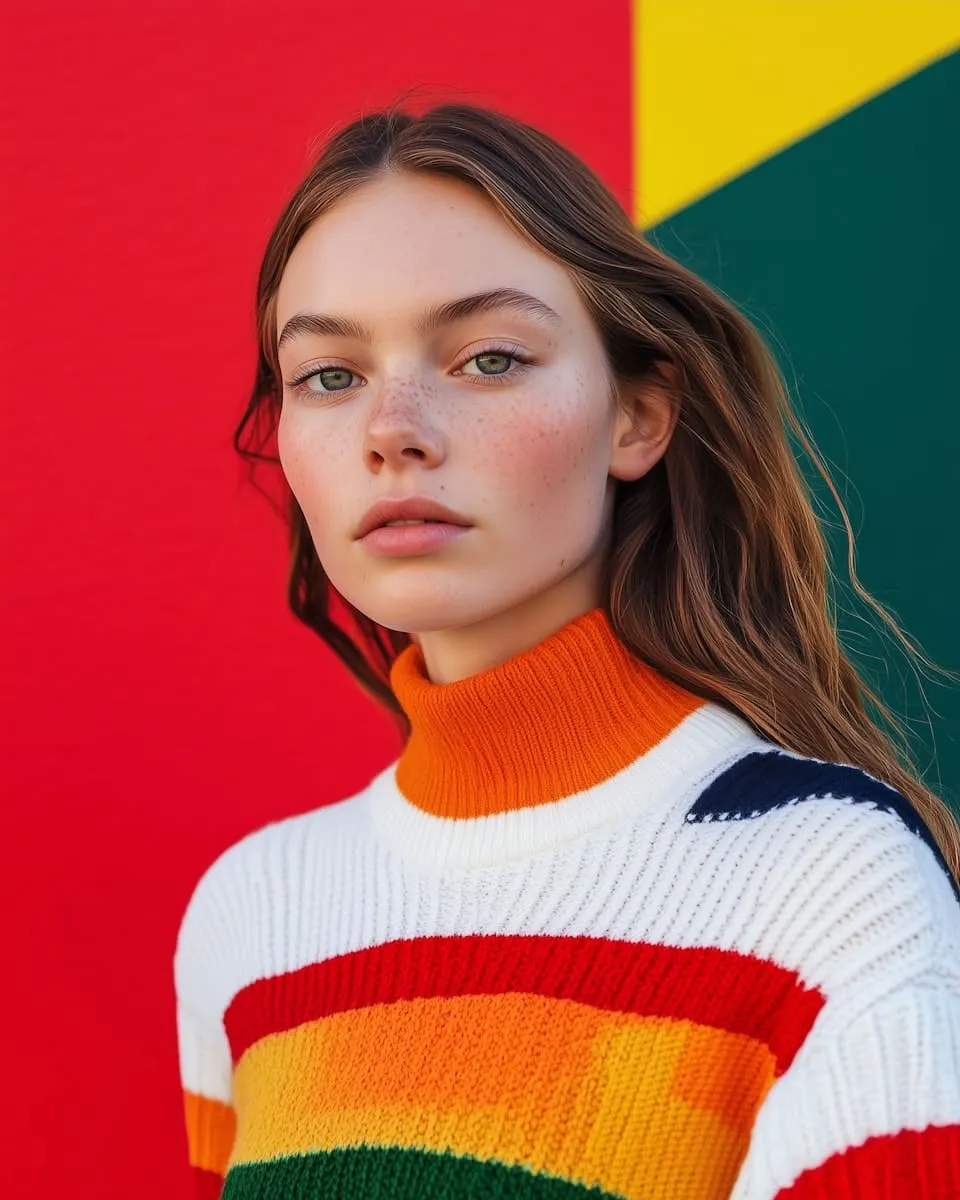
Generate Commercial Visuals with GPT Image 2
Image2 helps you turn prompts into photorealistic visuals with cleaner on-image text. Use it for posters, ads, product mockups, packaging concepts, and information-heavy layouts that need both strong imagery and readable copy.


How to Create Better Images from Text
Use GPT Image 2 in three steps to create photorealistic visuals, marketing assets, and layouts with clearer text and cleaner composition.
Describe the subject and intended use
Start with what you need to make, such as a poster, ad creative, product mockup, landing page visual, or infographic. Include the subject, setting, lighting, composition, and any text that should appear so the model can prioritize content and layout together.
Choose a model and aspect ratio
Select GPT Image 2 and pick the format that fits the job, such as square for ecommerce, portrait for posters, or landscape for banners and presentations. Matching the aspect ratio to the final placement helps the composition land faster.
Generate, review, and refine
Create a first pass, then tighten the prompt based on what matters most: text clarity, product placement, spacing, color direction, or realism. A few focused iterations usually work better than one overly broad prompt when you need production-ready visuals.
Why GPT Image 2 Works Well for Text to Image
This workflow is built for high-resolution commercial visuals, especially when you need both photorealistic detail and cleaner text placement in the same image.
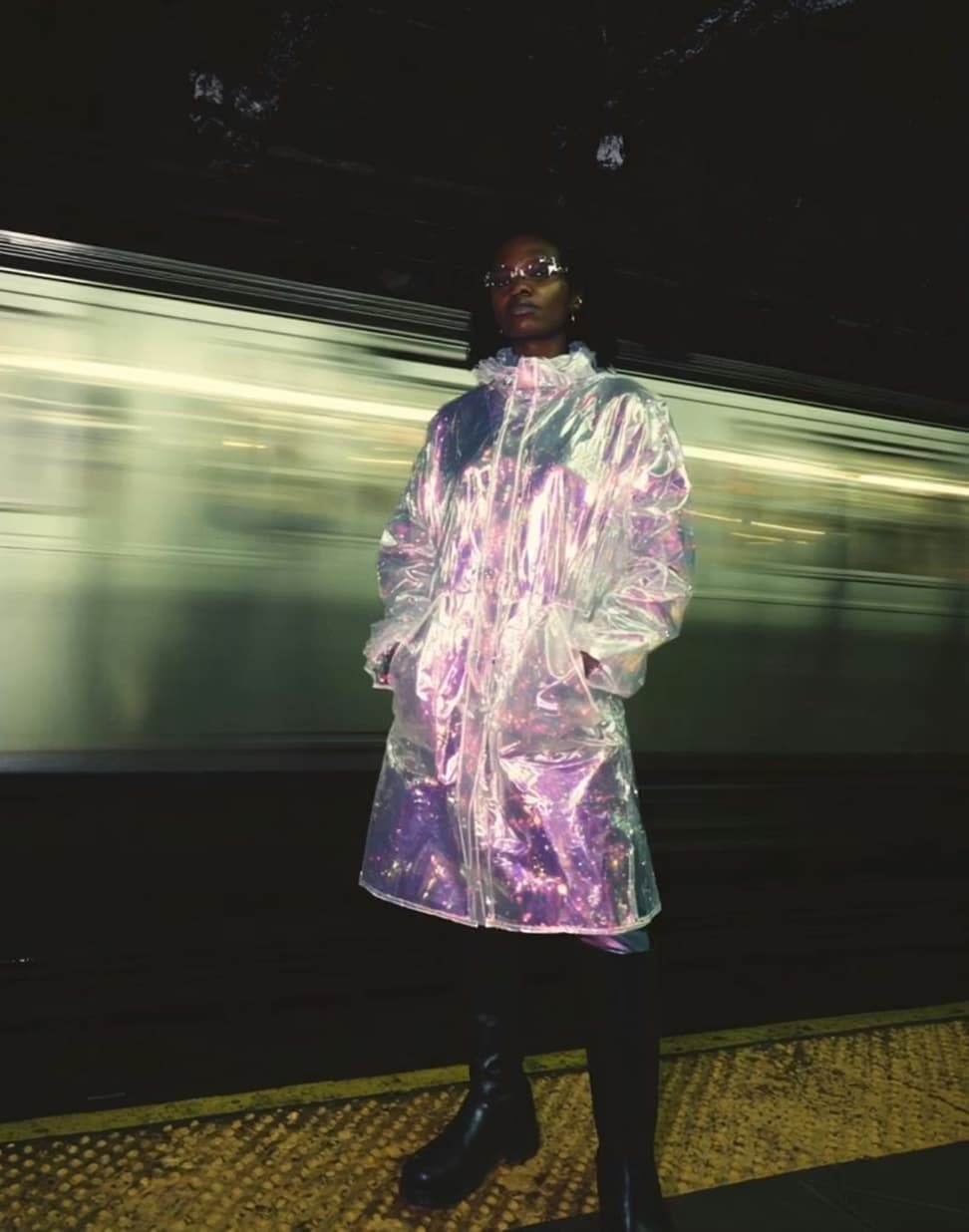
Made for Marketing, Ecommerce, and Design Teams
Use GPT Image 2 to turn ideas into posters, ad creatives, product mockups, packaging directions, and information-rich layouts without waiting on a full production cycle. It works well for fast concepting, internal reviews, client presentations, and early-stage campaign development when you need photorealistic images with cleaner on-image text.
GPT Image 2 FAQs
Answers about GPT Image 2 for text to image generation, readable text, product mockups, resolutions, credits, and commercial use.
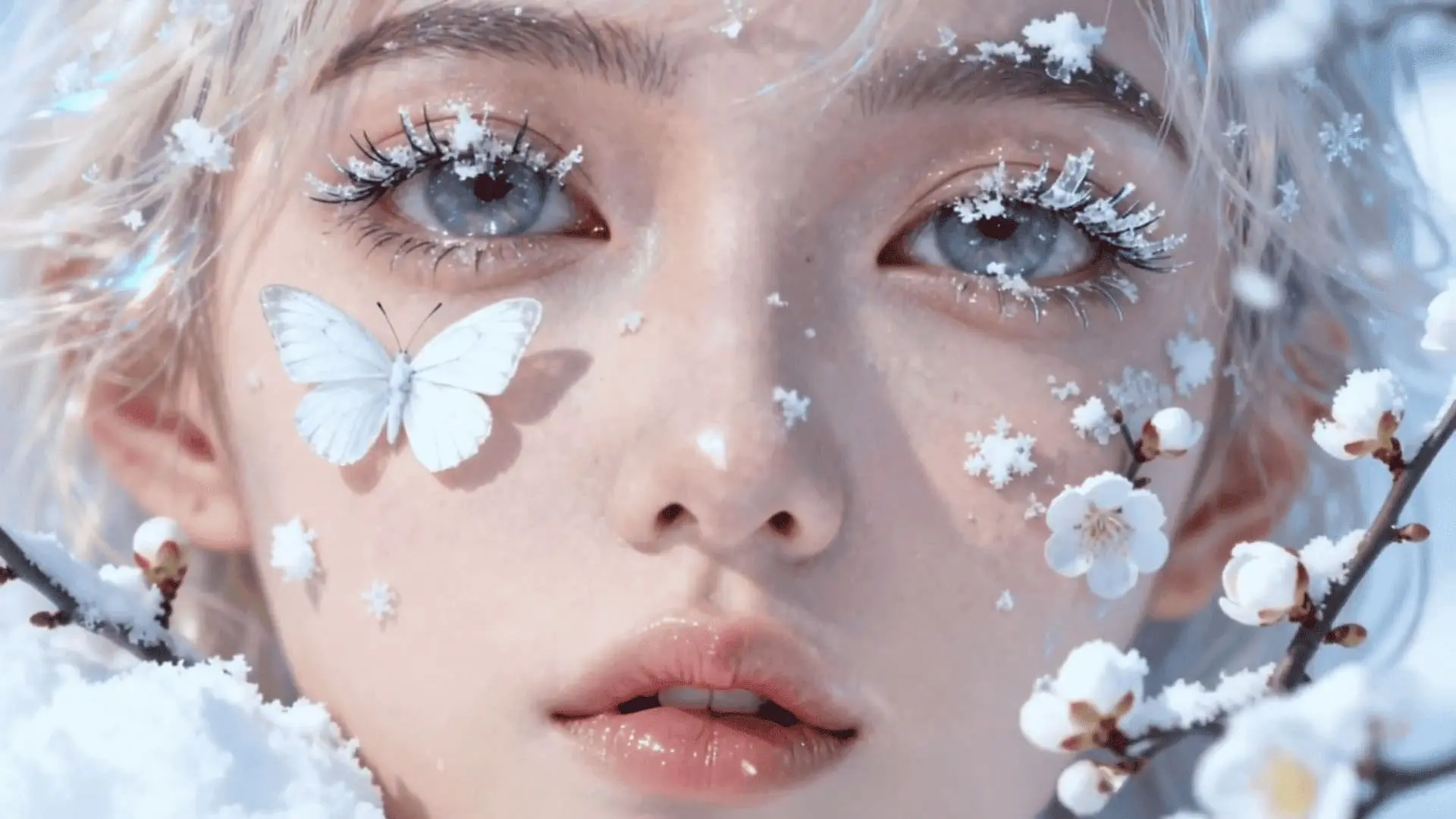
GPT Image 2
Generate product images, ad creatives, and posters in seconds — free to try online. No design skills needed.