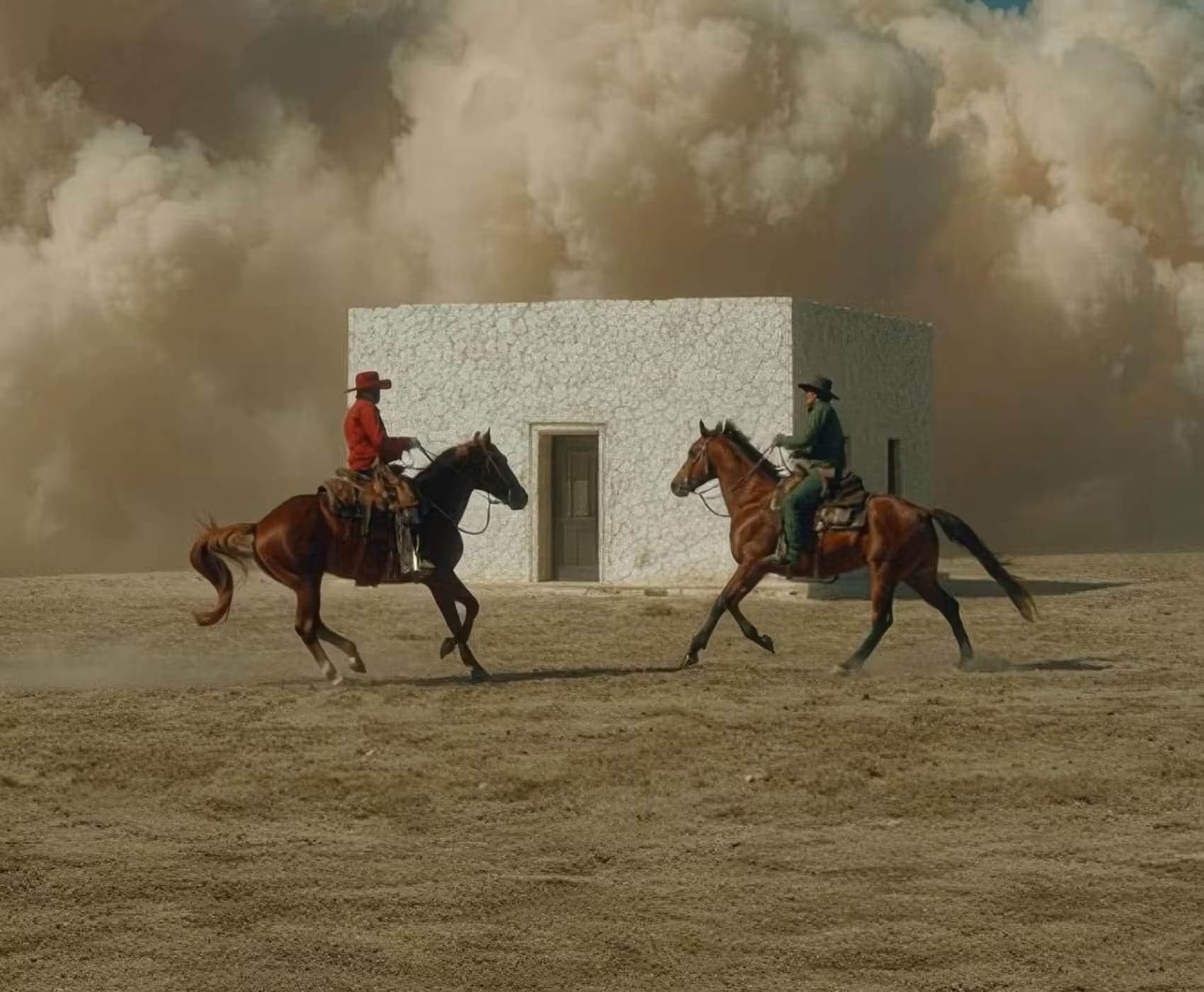
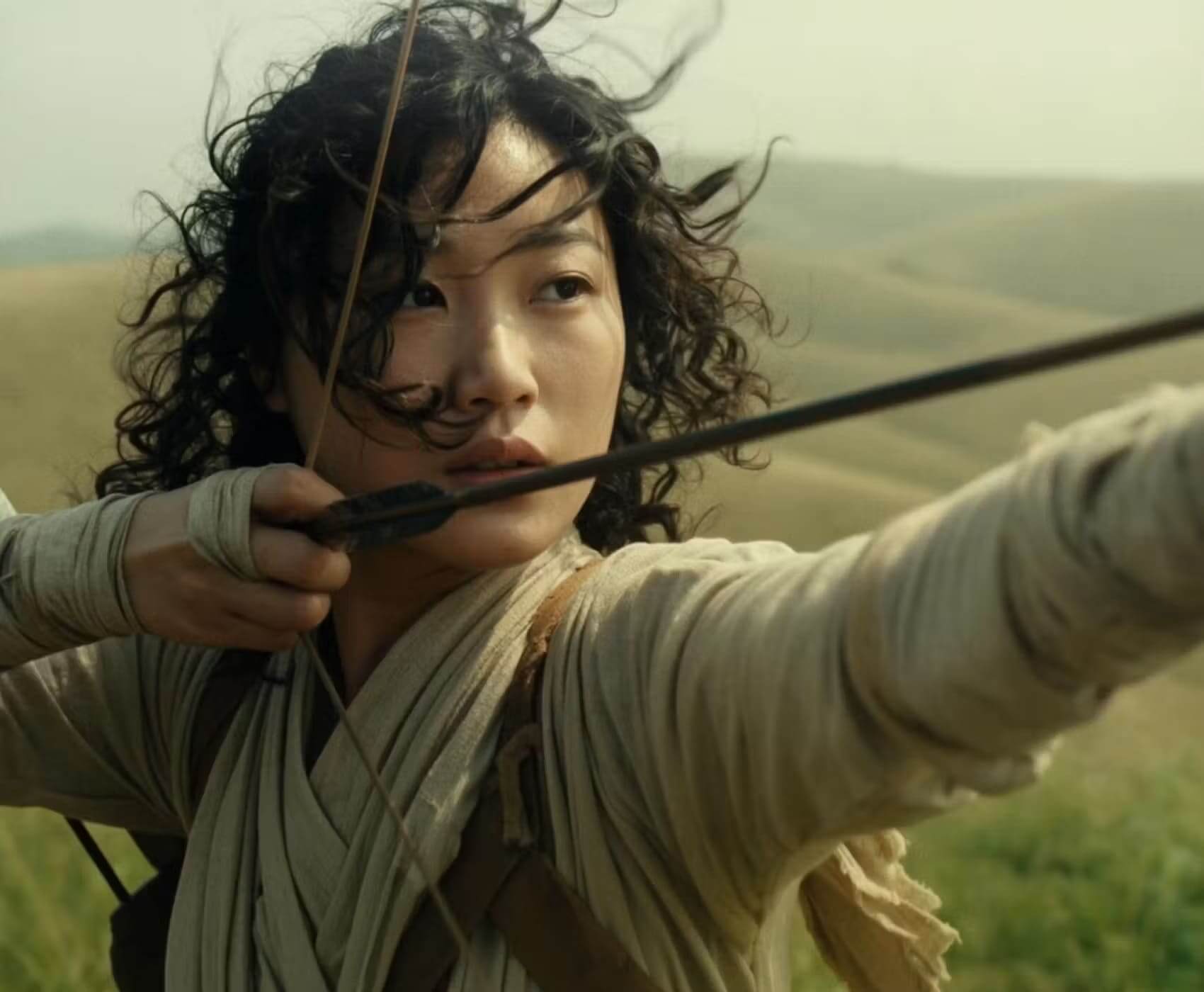
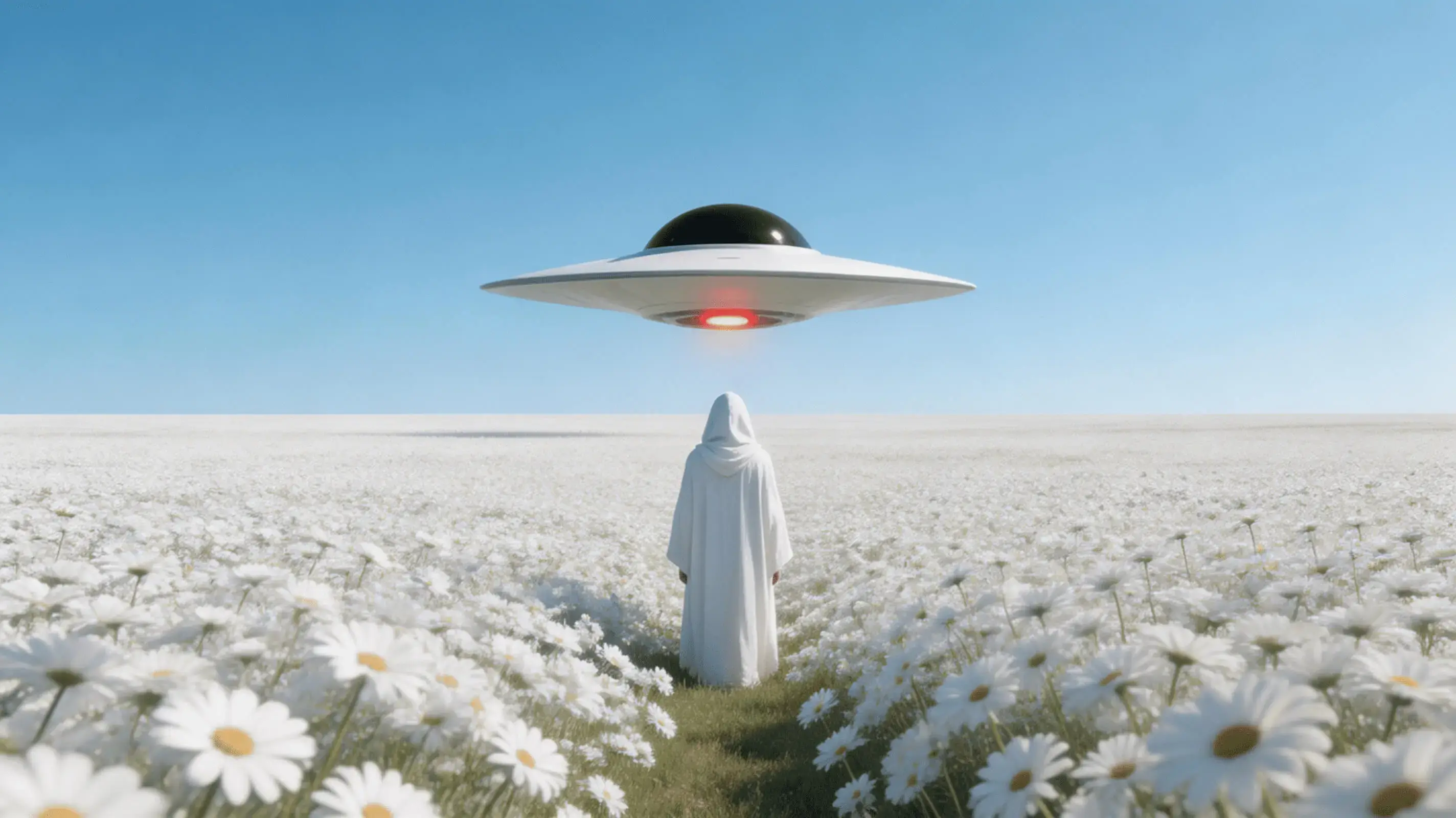
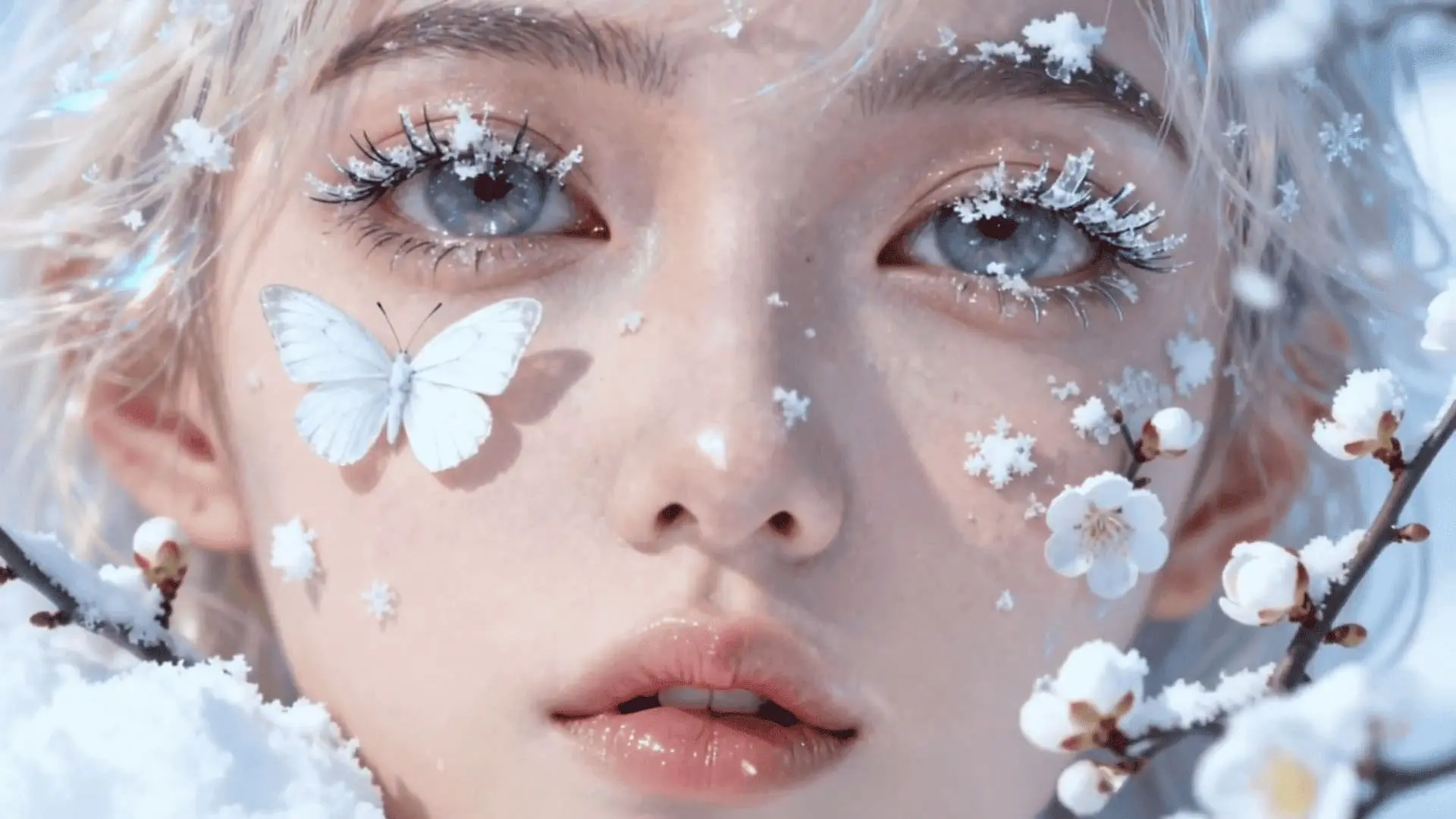
Gemini Omni AI Video Generator: Create and Edit Video Through Chat

Gemini Omni is Google's multimodal AI video model that turns text, images, and audio direction into video — then lets you edit it in plain conversation. Generate a clip, ask for changes to action, camera, or style, and keep the same characters and scene from one turn to the next. Built for marketers, creators, and product teams. Try it free on Image2 AI.

Why Teams Choose Gemini Omni

The capabilities that matter most when you move from a rough idea to a finished, on-brand clip.

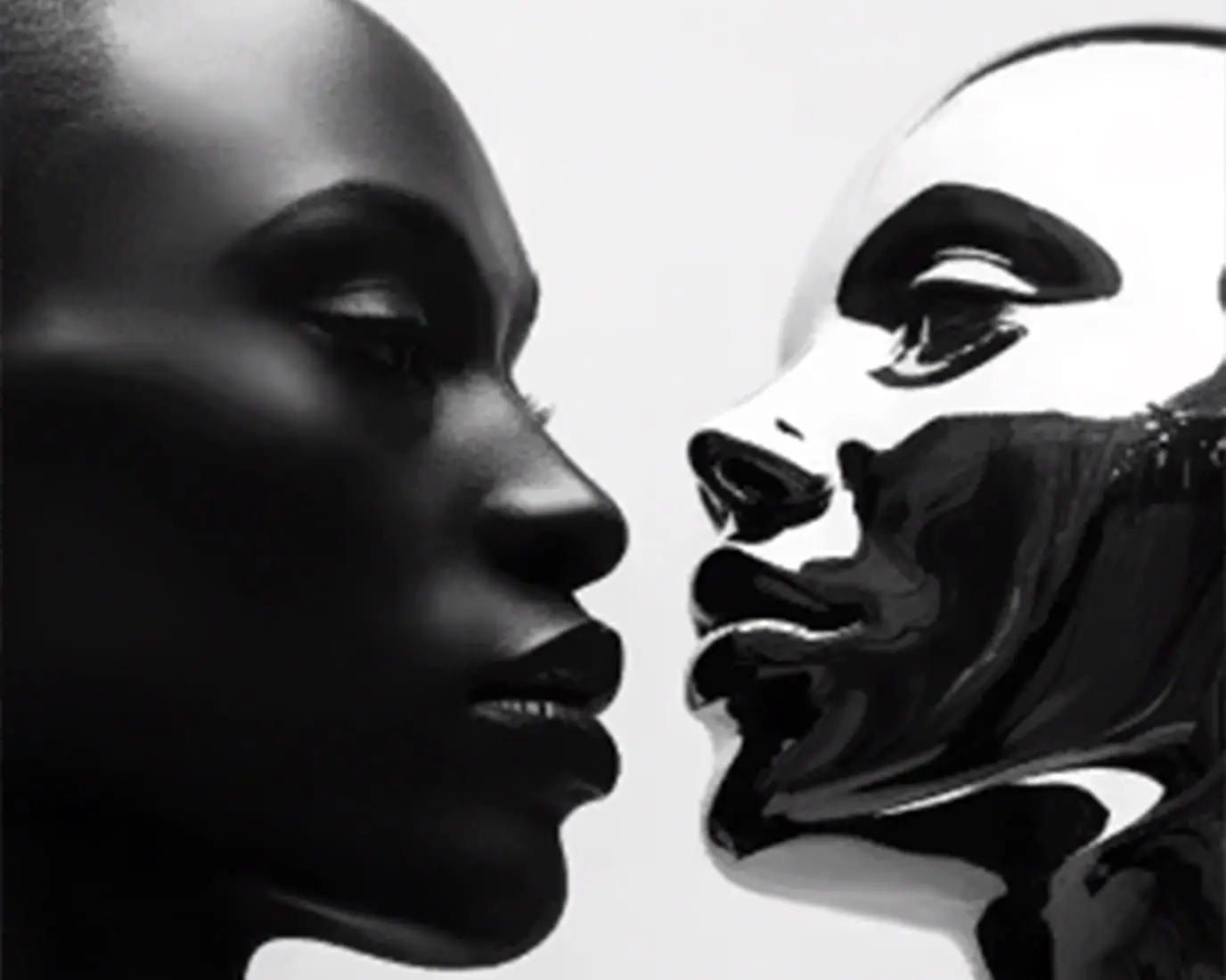
Gemini Omni conversational edit showing the same character across two versions with only the background changed
1

Edit Video by Talking, Not by Timeline

Skip keyframes and layer stacks. Describe the change you want — 'make the lighting warmer,' 'keep the same character but change the background' — and Gemini Omni applies it while holding the rest of the scene steady. That turns a late client revision from a re-edit into a sentence.

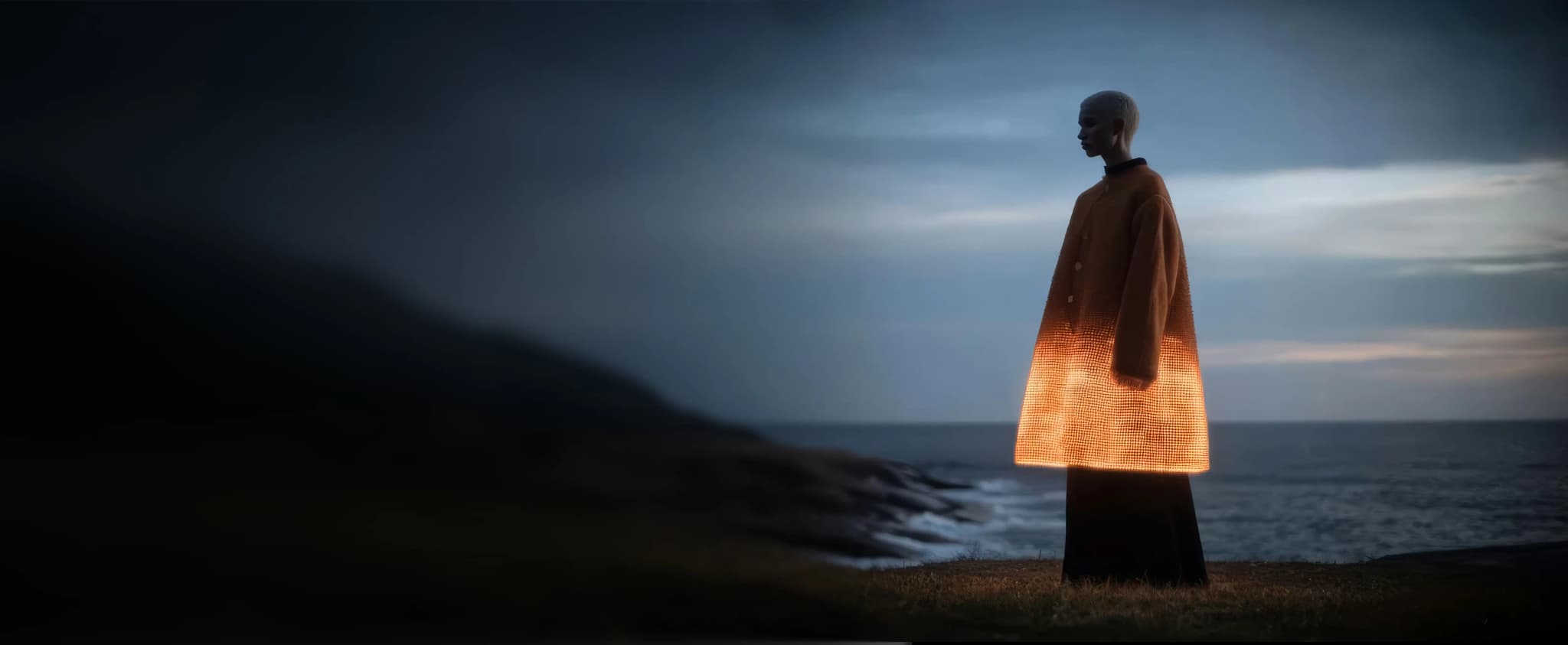
Gemini Omni multimodal workflow combining a text prompt, a reference image, and an audio cue into one video
2

One Canvas for Text, Image, and Audio References

Bring a prompt, a product photo, a character sketch, and an audio cue into the same task. Gemini Omni synthesizes them into one coherent clip, so you define style, subject, and mood without juggling separate tools or exports.

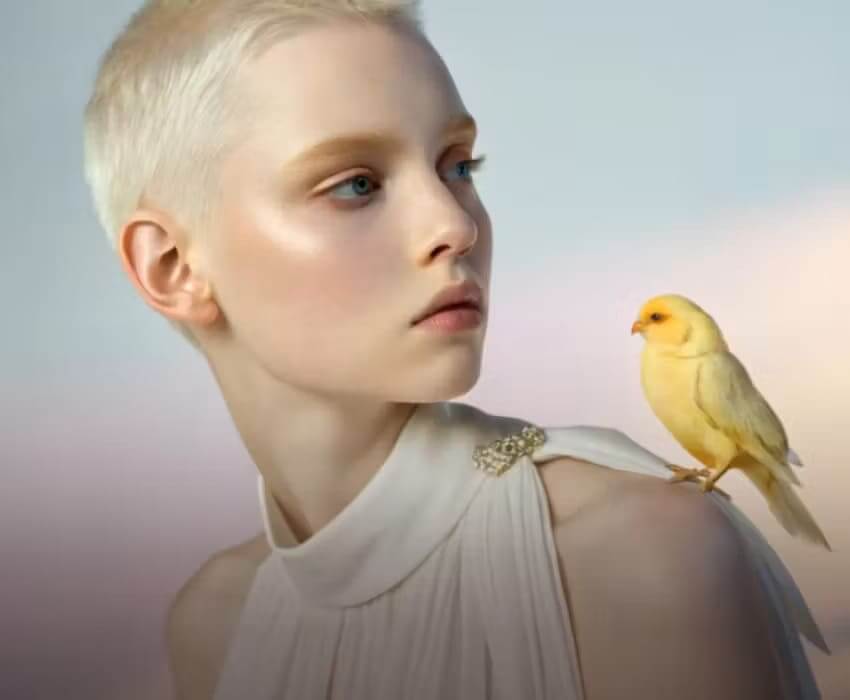
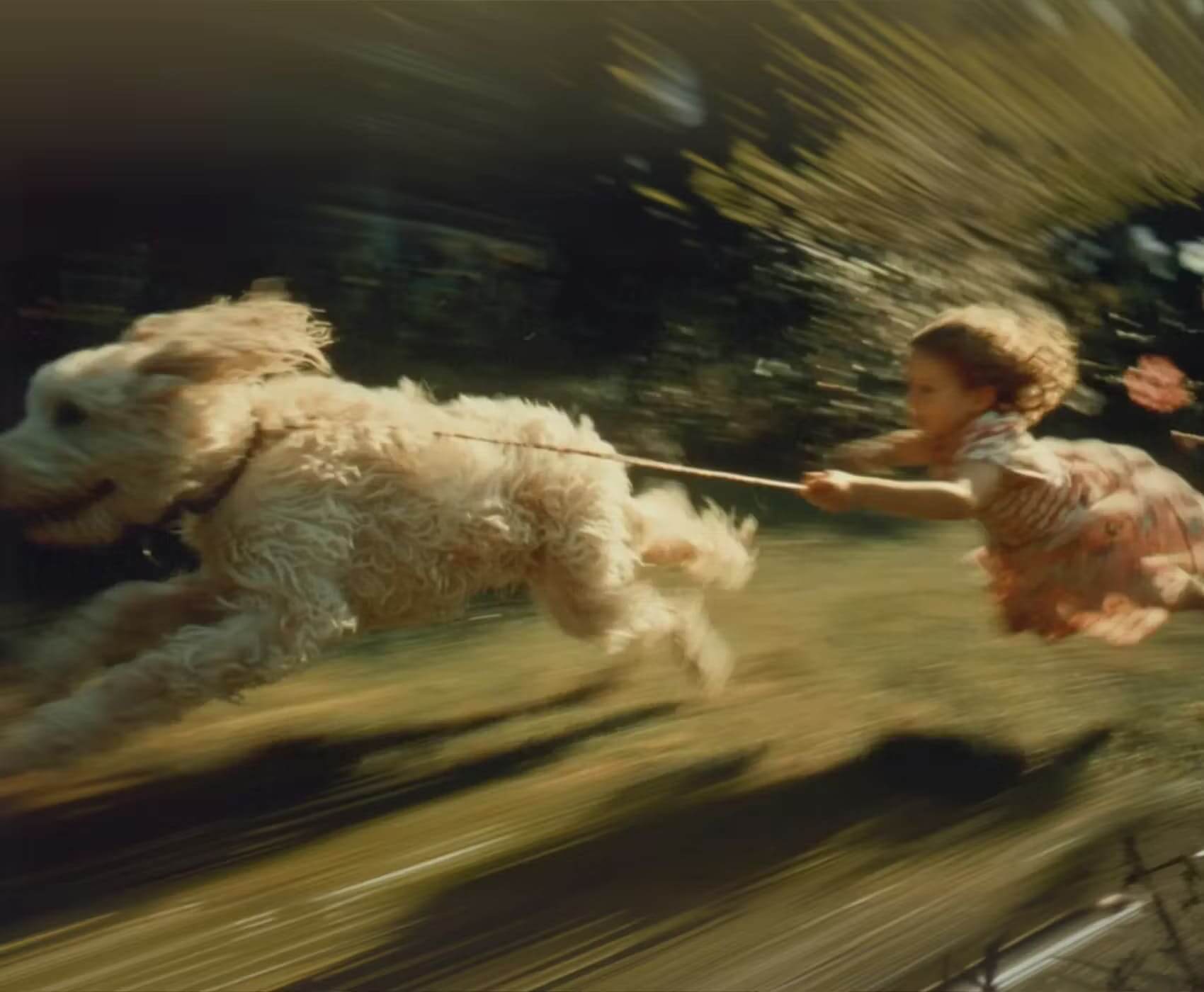
Gemini Omni multi-shot sequence keeping one character consistent with natural, physically grounded motion
3

Consistent Characters and Believable Motion

For multi-shot stories and recurring presenters, Gemini Omni maintains identity and scene continuity across turns, and its physics understanding keeps gravity, weight, and motion looking natural rather than artificial.

What You Can Make With Gemini Omni

From a first prompt to a channel-ready clip, Gemini Omni fits a range of creative jobs.

Gemini Omni e-commerce clip animating a product photo into a short rotating showcase

E-commerce Product Videos

Animate a product photo into a short demo, or remix a hero shot into seasonal variants — keeping the product accurate while you swap the scene and mood with Gemini Omni.

Gemini Omni short ad creative generated from a prompt and a brand reference image

Marketing and Ad Creative

Spin up UGC-style ads, promo clips, and social cutdowns from a prompt and a reference, then iterate the hook, pacing, and framing by chat to test angles fast.

Gemini Omni pre-visualization storyboard turning concept frames into a moving sequence

Design and Pre-Visualization

Generate reference frames, explore camera ideas, and turn the strongest direction into motion — using Gemini Omni for storyboards and pre-viz before any real shoot.

Gemini Omni explainer video showing a step-by-step process with a clear visual style

Education and Training

Build explainers, operation demos, and visual lessons. Gemini Omni can stage step-by-step demonstrations and multi-angle views to make a process easier to follow.

Gemini Omni animated game concept clip generated from reference character art

Game and Concept Content

Prototype characters, environments, and animated concept clips. Reference art guides the look while Gemini Omni adds motion and restyles scenes for mood boards and teasers.

Gemini Omni vertical social clip featuring an avatar-style presenter generated from a portrait reference

Content Creation and Social

Make avatar-led intros, talking-style presenter clips, and shorts for vertical feeds — generate once, then refine the same idea by chat for each platform with Gemini Omni.

How to Use Gemini Omni on Image2 AI

Three steps from idea to finished, refined video.

Step 1: Pick a Mode and Add Your Inputs

Choose text-to-video for a prompt-only idea, or image-to-video to animate a reference. Drop in any supporting images, audio direction, or a source clip you want Gemini Omni to work from.

Step 2: Describe the Output Clearly

Spell out subject, action, camera movement, style, aspect ratio, and any detail that must stay consistent. The more specific the brief, the closer Gemini Omni lands on your first try.

Step 3: Generate, Then Refine by Chat

Create the first clip and review it, then give natural follow-ups — 'lower the camera,' 'change the background,' 'keep the character the same.' Gemini Omni carries the context forward until it lands, then export your MP4.

Gemini Omni FAQ

Quick answers about Gemini Omni and how it works on Image2 AI.


Image2 CTA background

IMAGE2