Flawless Text Rendering
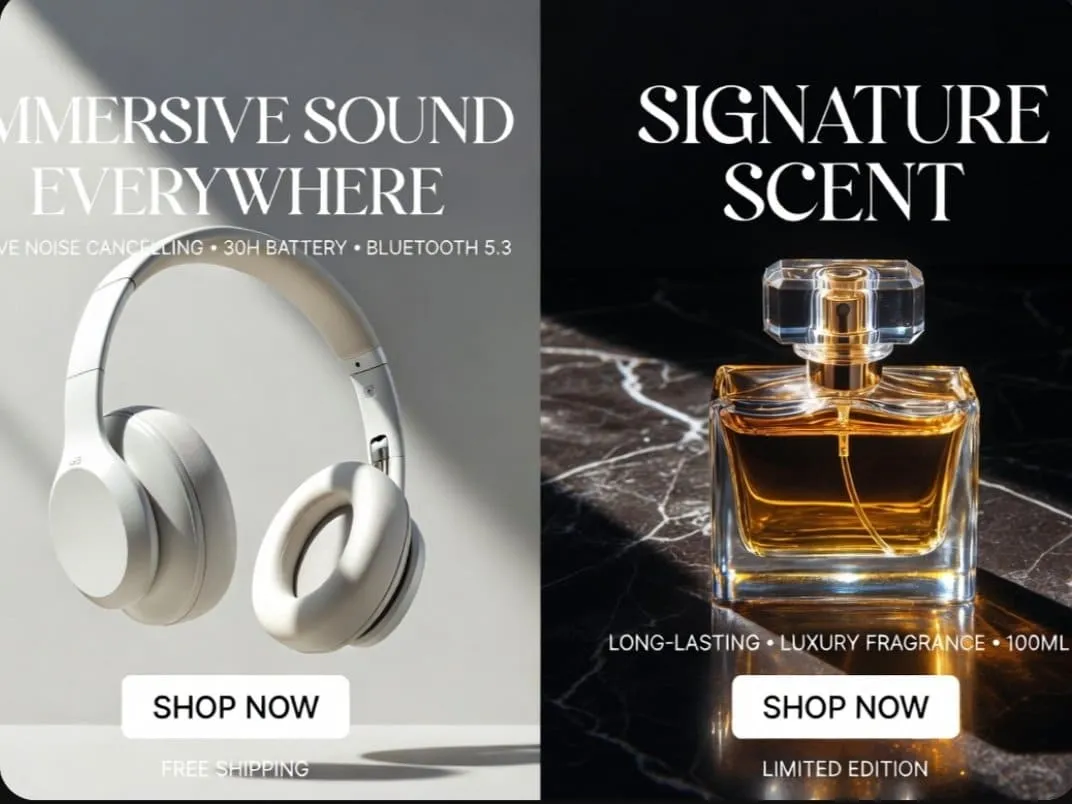
Generate long strings, multi-word labels, and headlines with correct spelling, punctuation, and casing — no more garbled AI text ruining your posters and ad creatives.
Powered by OpenAI's latest model, GPT Image 2 generates and edits photorealistic 4K visuals with near-perfect text rendering. Turn a single prompt into posters, ad creatives, UI mockups, and product shots — with the structural consistency professionals need. Start your free trial today.
Generate long strings, multi-word labels, and headlines with correct spelling, punctuation, and casing — no more garbled AI text ruining your posters and ad creatives.
From technical diagrams to world maps, GPT Image 2 leans on deep world knowledge to keep structural details right, so your visuals hold up under a close look.
Create crisp, high-resolution 4K visuals built for commercial use — sharp enough for print, large-format ads, and product mockups straight out of the model.
Spell out multi-subject scenes, placement, and outfit details, and GPT Image 2 renders them faithfully — you get the exact composition you asked for, not an approximation.
Make surgical local edits that blend naturally into the original lighting and style, so every revision looks intentional — never pasted in.
GPT Image 2 picks up where older AI image generators fall short. Here's what sets it apart:
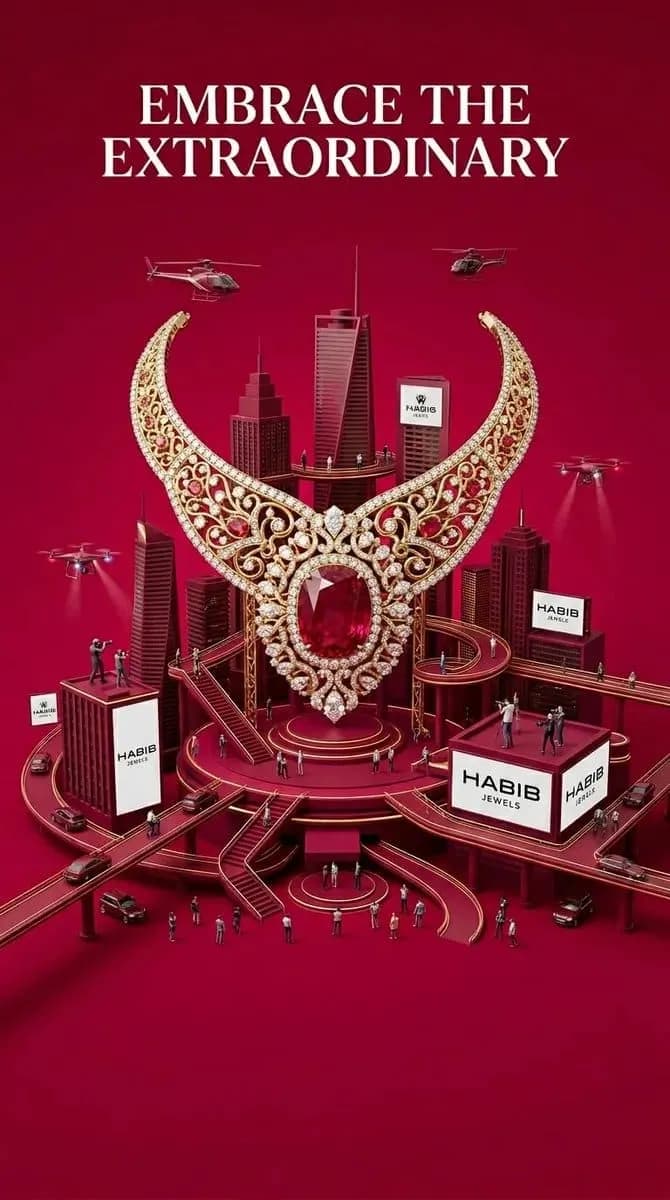
Generate print-ready, high-resolution 4K assets in a range of aspect ratios — commercial quality straight from a single prompt.
Make precise, local edits with plain-language commands. Adjust one area without disturbing the original lighting, shadows, or composition.
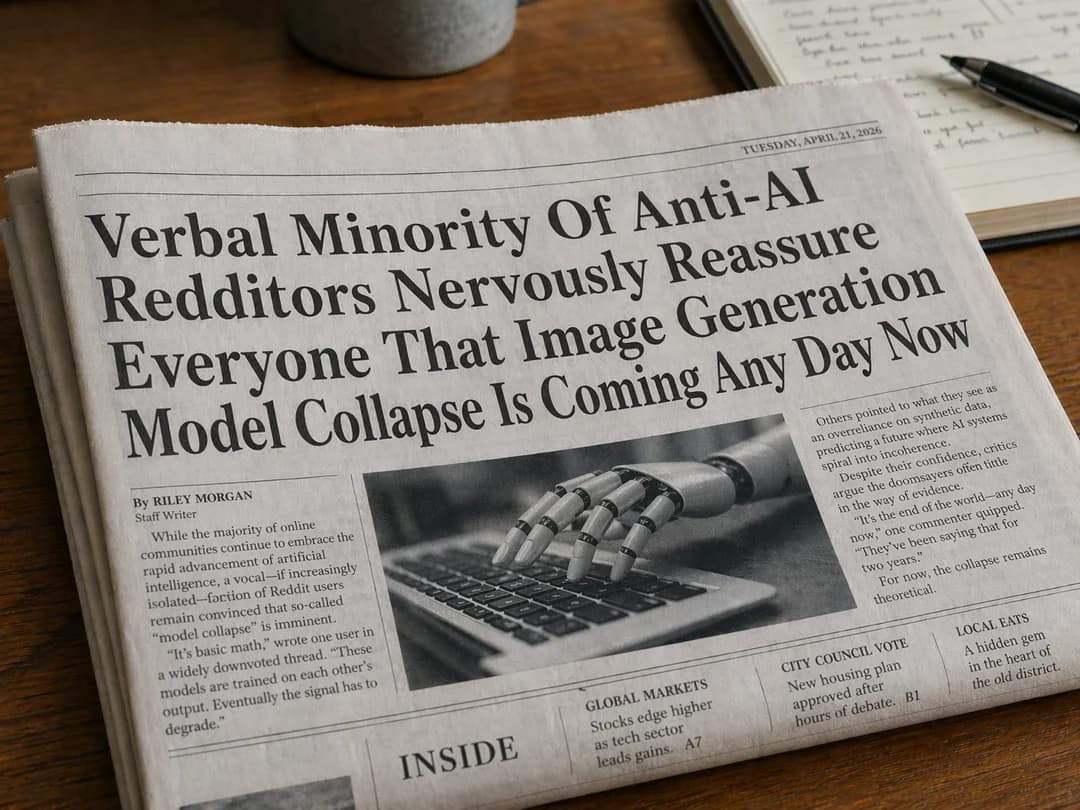
GPT Image 2 renders clean, correctly spelled text across multiple languages — ideal for UI mockups, storefront signage, and product labels that have to read perfectly.
GPT Image 2 fits a wide range of professional and creative workflows. Here's who gets the most out of it:
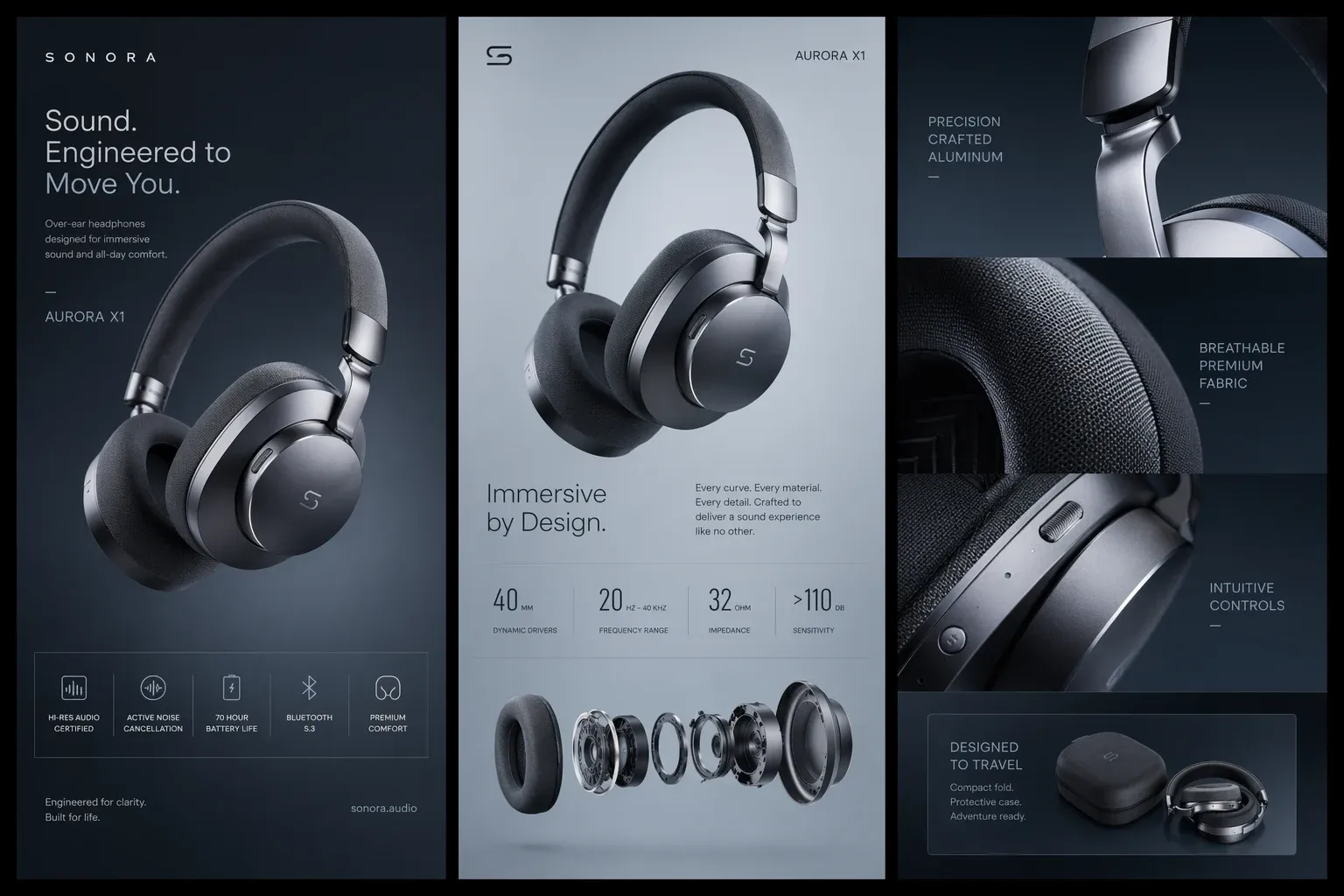
Produce product hero shots and detail-page visuals, complete with multi-language labels and packaging mockups — ready to drop into your storefront.
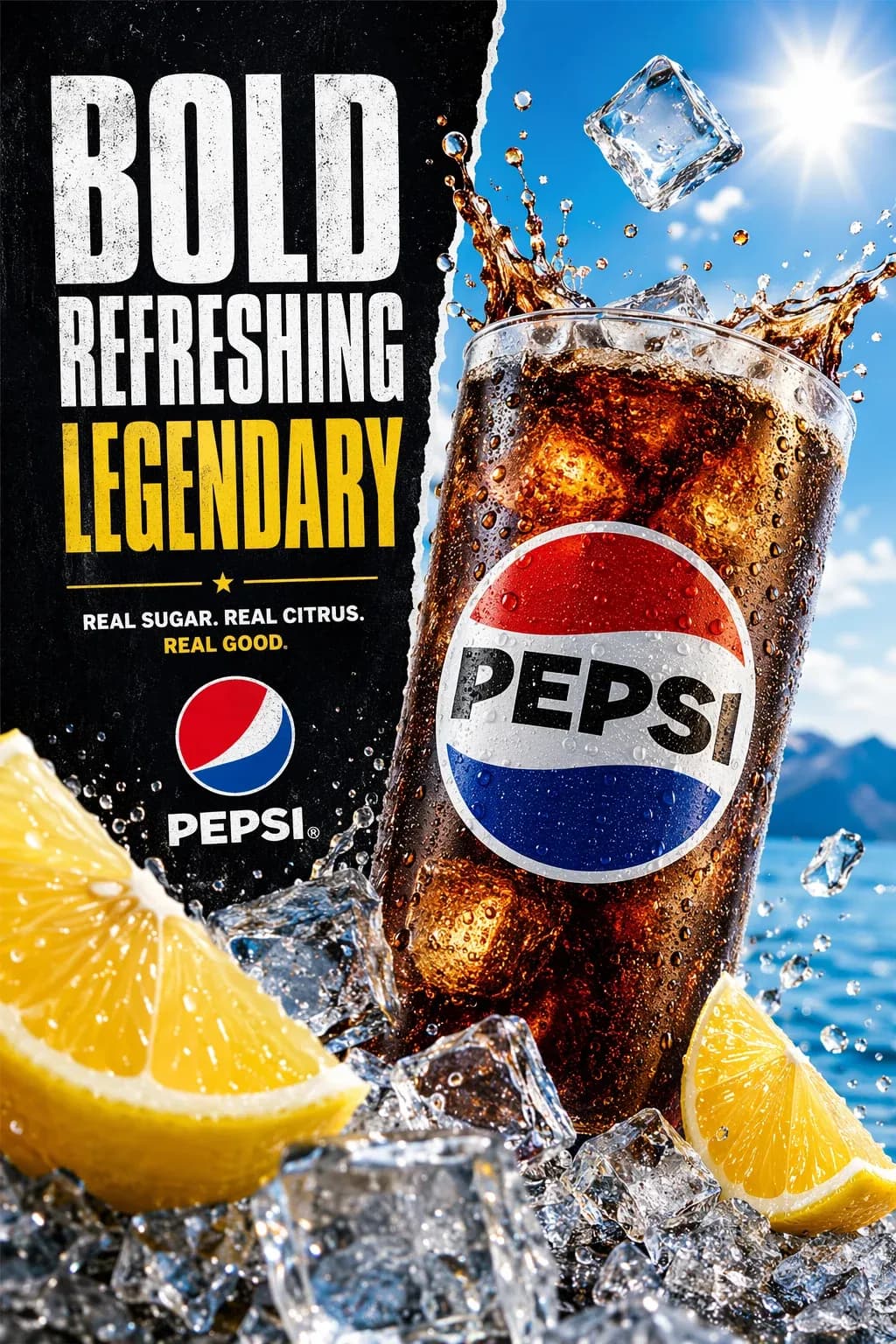
Generate social graphics, ad creatives, product mockups, and email headers with on-brand messaging — at the volume real campaigns demand.
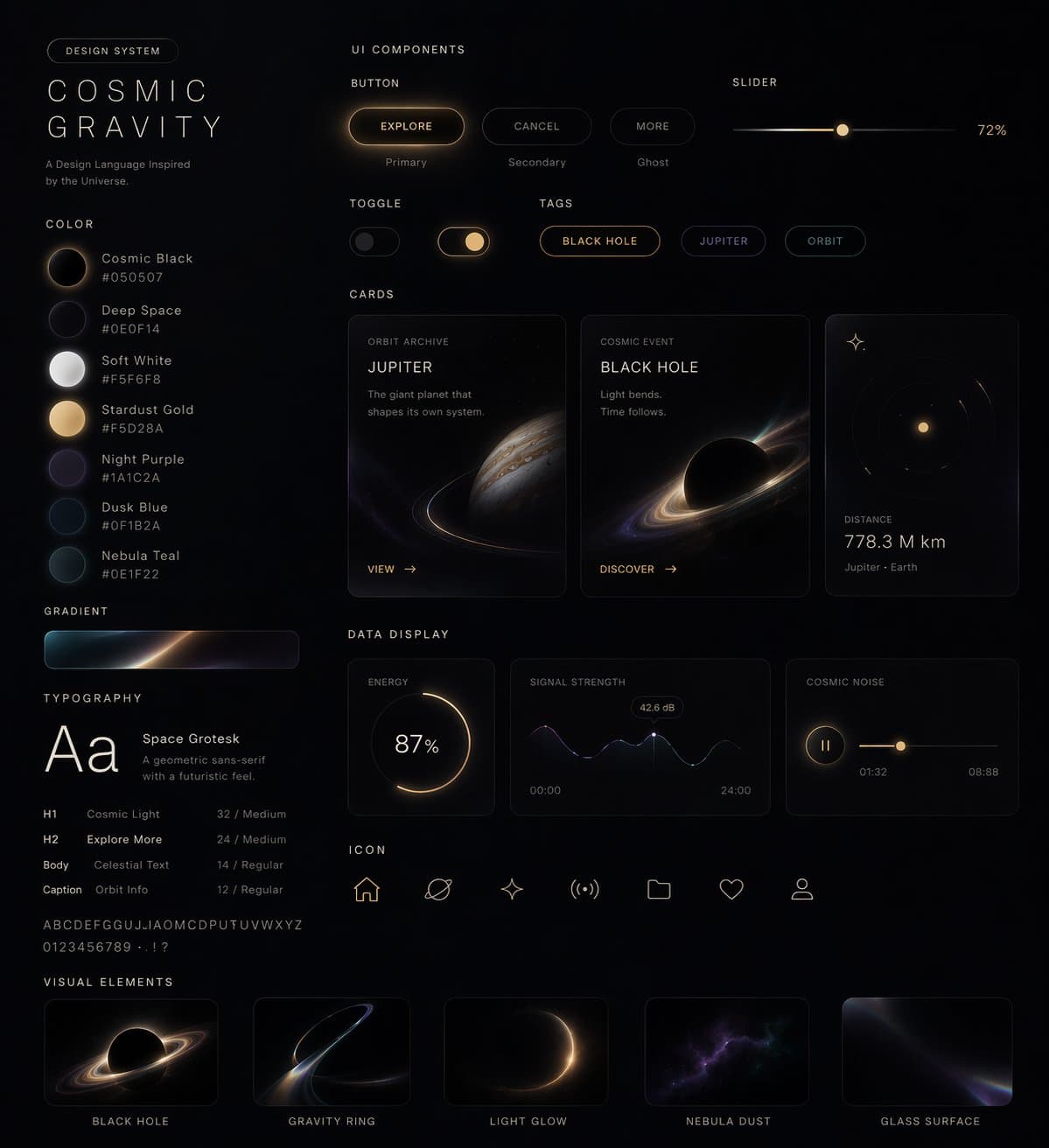
Prototype app screens, website layouts, and product visuals in minutes — explore directions before committing a dedicated designer's time.
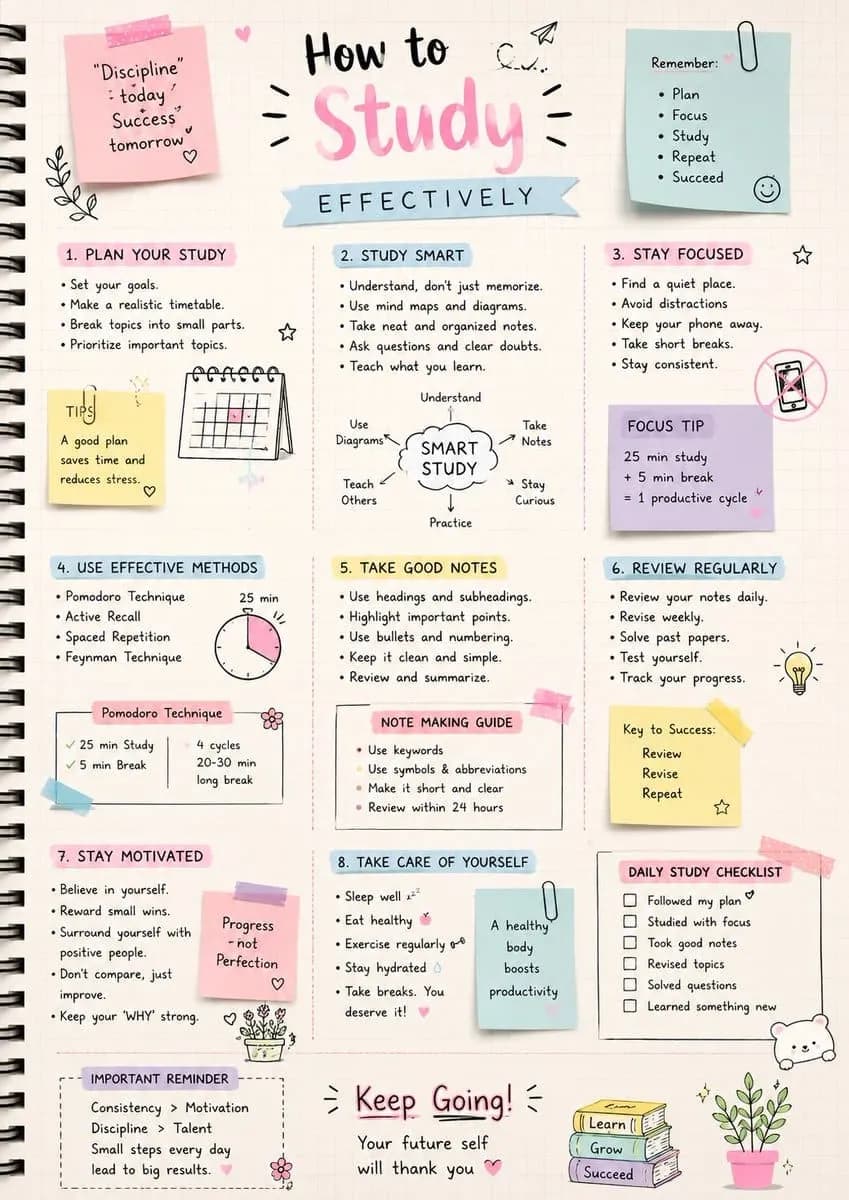
Create infographics, visual reports, book covers, and blog imagery with clear labels and a consistent visual style across a series.
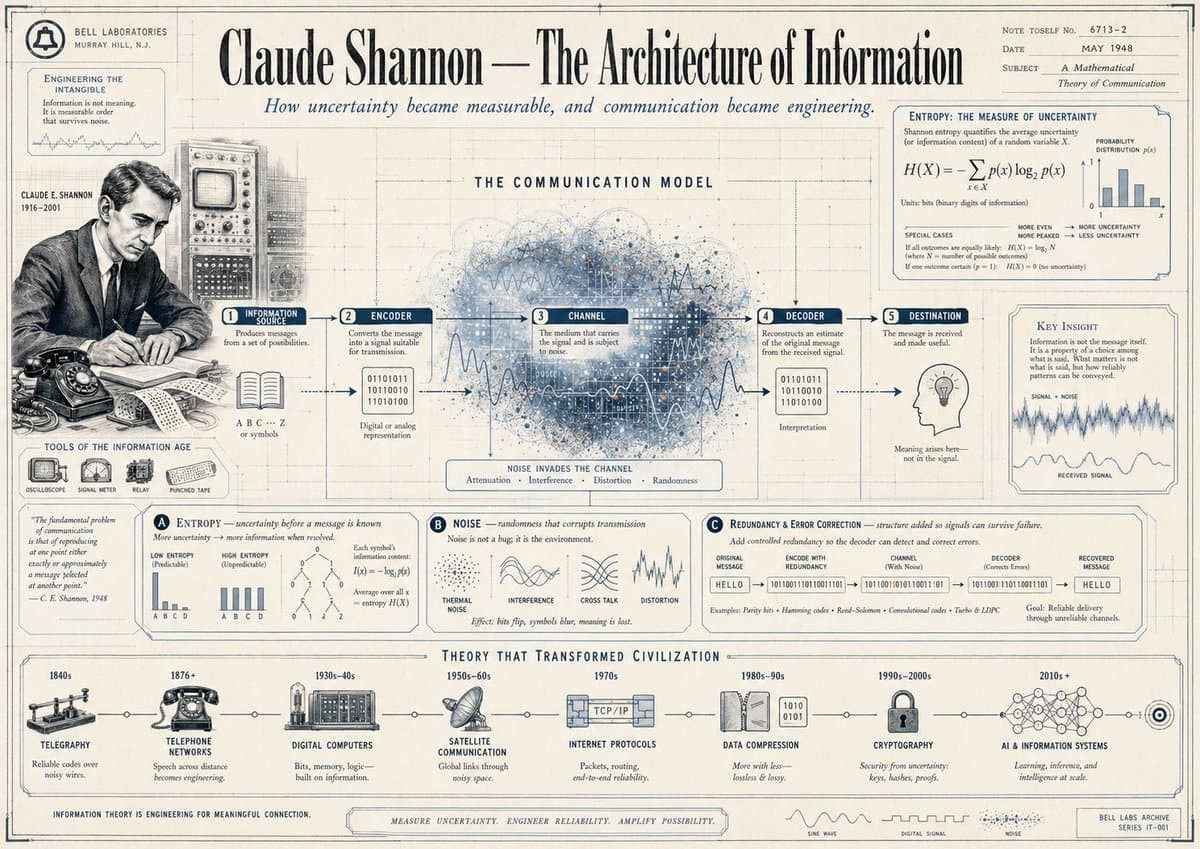
Build educational visuals, illustrative diagrams, and study materials with clean, legible annotations to support your lessons.
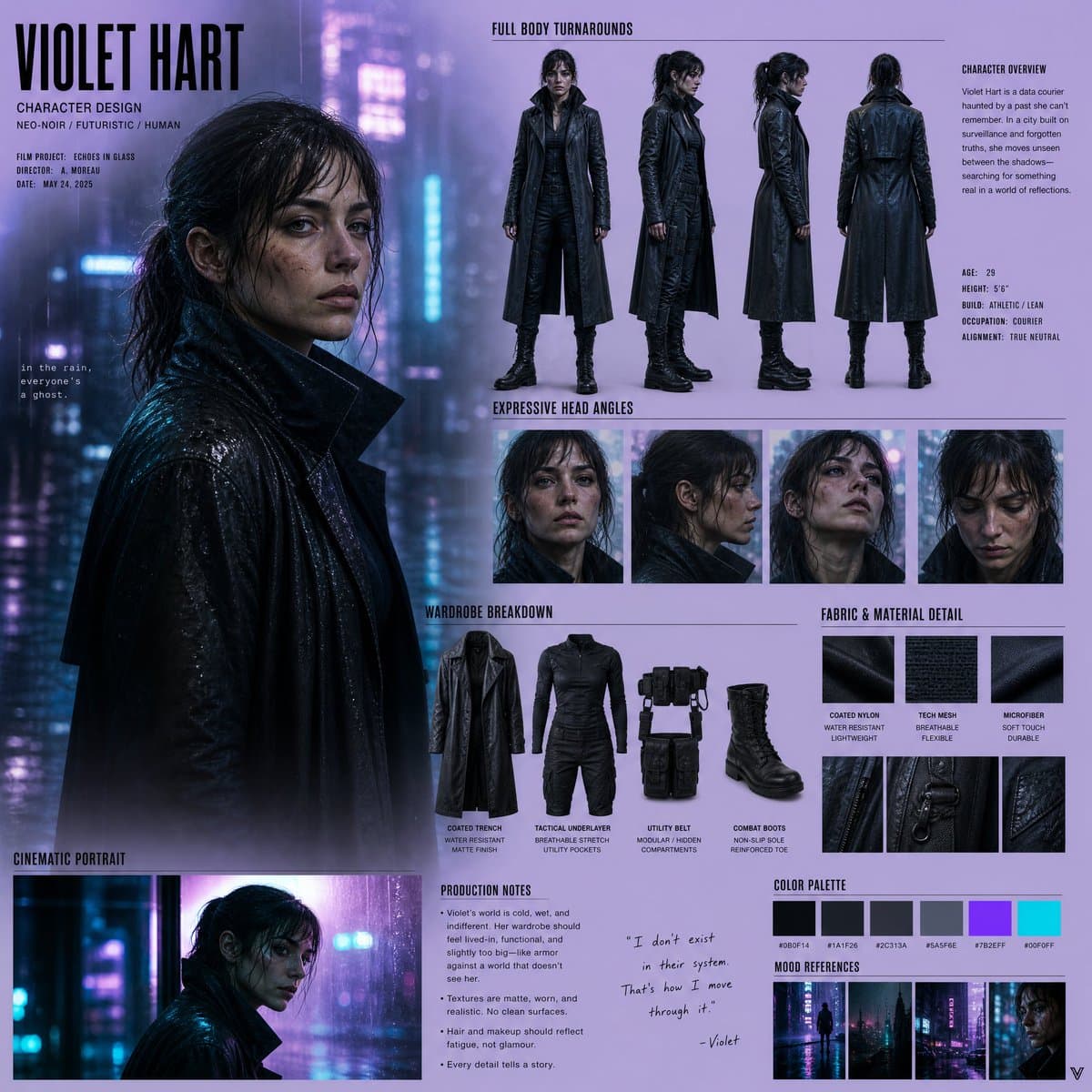
Concept character art, UI elements, and environment assets fast — perfect for early prototyping, mood boards, and pitch decks.
Same prompt, both models, side by side. See how GPT Image 2 and Nano Banana Pro compare on fine detail, text rendering, and composition — and judge for yourself.

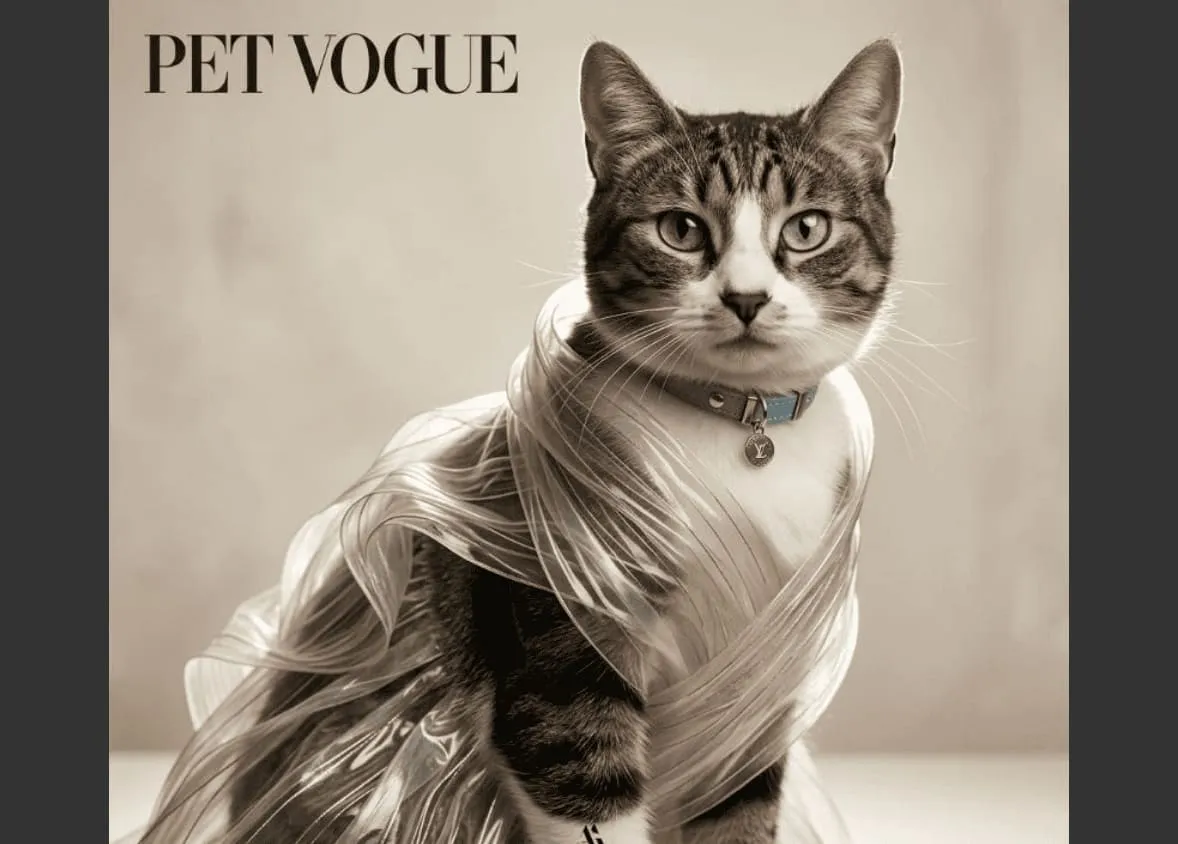
Prompt
Use amplifiers to transform the photo I upload of my cat into a high-fashion editorial photoshoot for a luxury pet fashion magazine. Keep the transparent plastic wrapping as avant-garde styling. Use cinematic studio lighting, shallow depth of field, ultra-realistic fur texture, elegant composition, and Vogue-style fashion photography.
Go from idea to a publish-ready image in three simple steps:
Open the AI Image Generator and describe what you want in plain text. You can also upload a reference image if you want GPT Image 2 to match a specific style or layout.
Choose GPT Image 2 from the model list, then set your size, aspect ratio, style strength, and number of variations to fit your exact use case.
Hit generate, review the results, and tweak your prompt if needed — then download the final images or push them straight into your campaign or video workflow.
Common questions about the GPT Image 2 model.
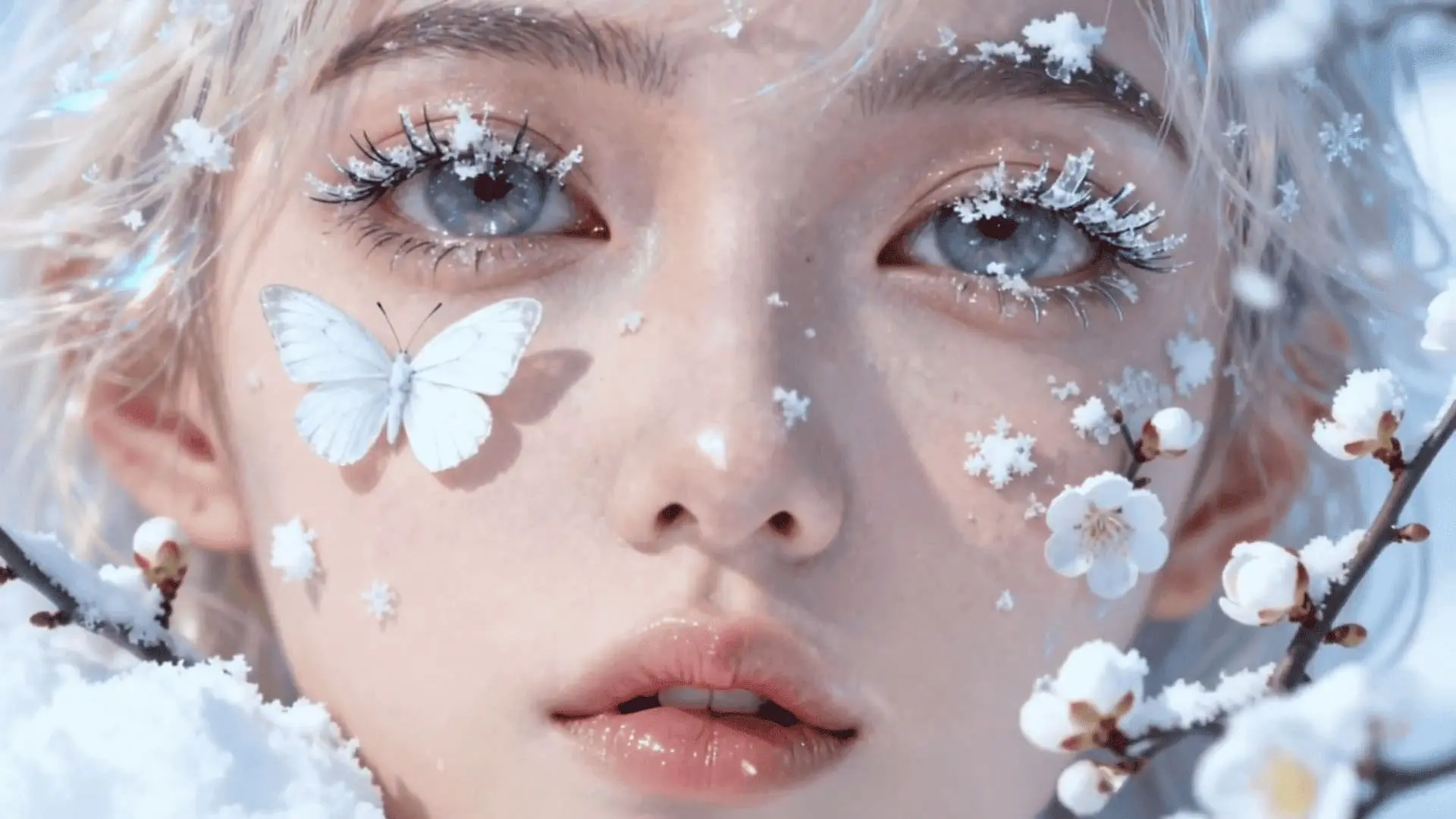
Generate product images, ad creatives, and posters in seconds — free to try online. No design skills needed.